Skip to content

SimBrief for X-Plane 12, without the file juggling

X-Dispatch fetches your latest SimBrief flight plan, shows the whole briefing in one window, draws the route on a 3D map, and writes the plan into the folder your aircraft reads from. No browser downloads, no renaming .fms files by hand.

Works with any free SimBrief account. Username or Pilot ID, your choice.

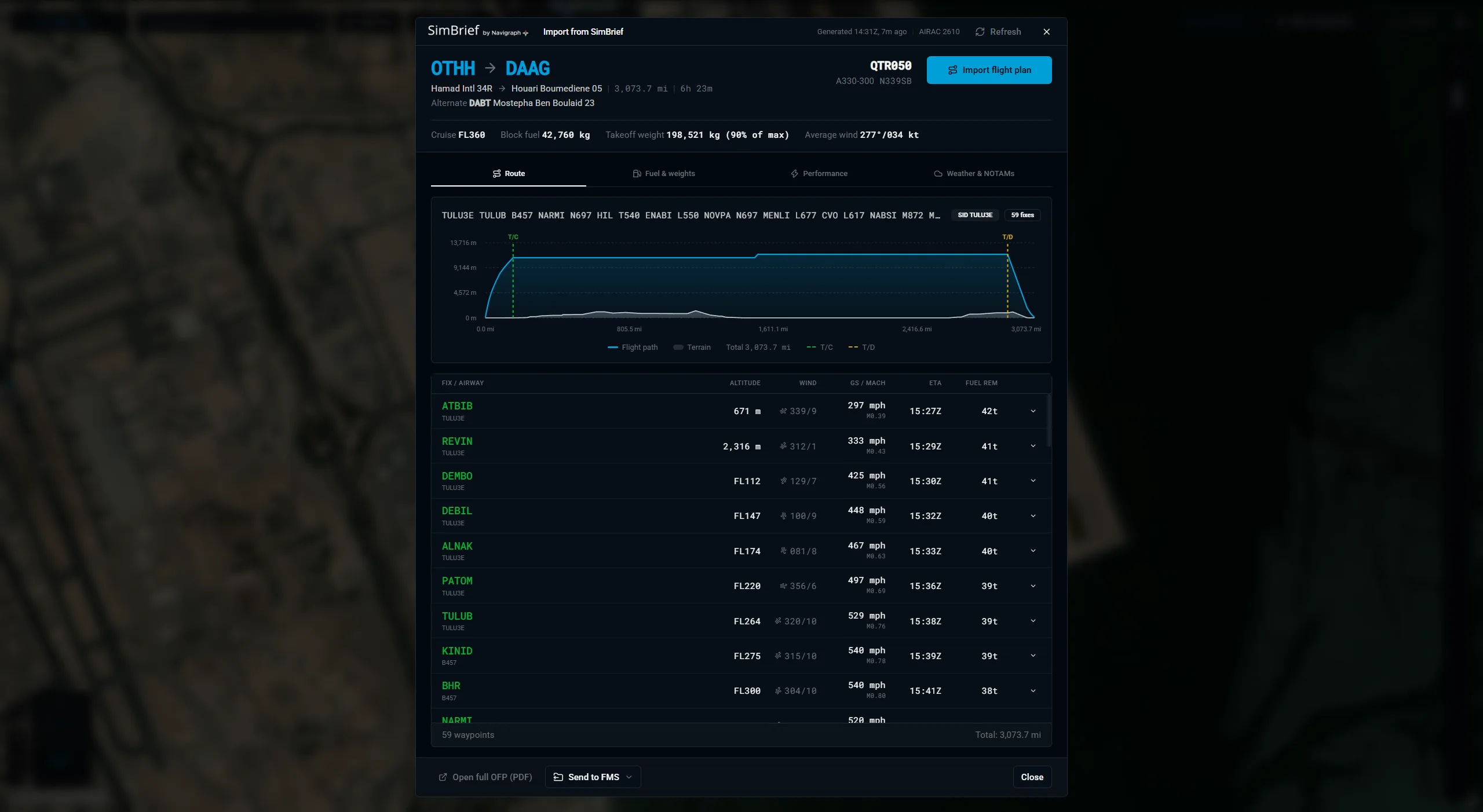
The SimBrief briefing in X-Dispatch: route, vertical profile and navlog for a flight from Doha to Algiers.

One click from SimBrief to X-Plane

Generate the flight on simbrief.com as usual. X-Dispatch picks it up from there.

  • Open Flight Plan, SimBrief in the toolbar, or press Ctrl+Shift+I. X-Dispatch fetches your latest OFP and shows when it was generated and which AIRAC cycle it uses.
  • Press Import flight plan and the route lands in the planner and on the map, SID, STAR, airways and oceanic tracks in their own colours.
  • Changed the plan on SimBrief? Press Refresh. The planner, vertical profile and flight plan bar update with it.
  • Set up once under Settings, SimBrief with your username or numeric Pilot ID. A Test button tells you it worked.
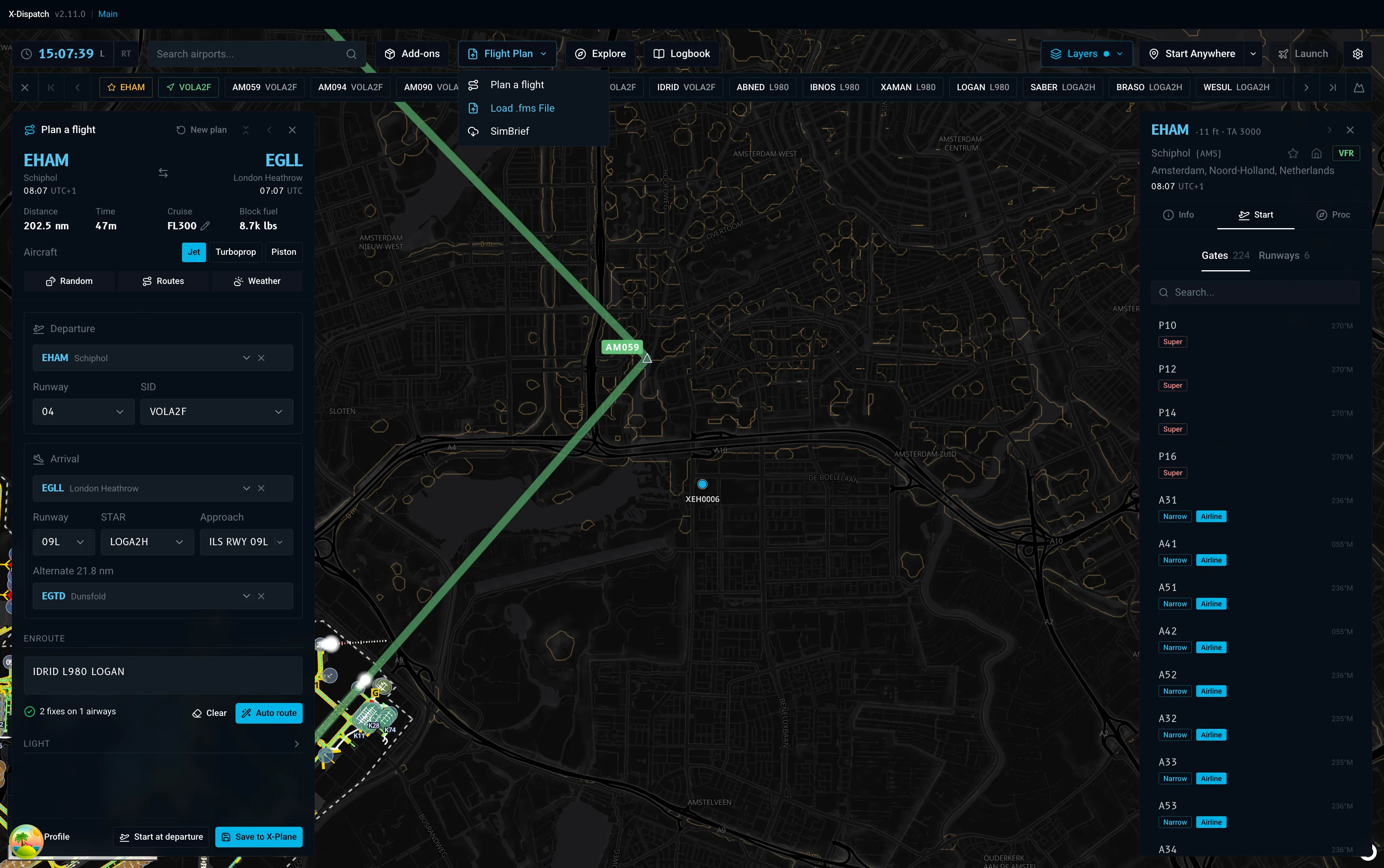
The Flight Plan menu in X-Dispatch with Plan a flight, Load .fms File and SimBrief entries.

The whole OFP in one screen

Everything you would scroll through in the PDF, laid out for a quick read before pushback.

  • Route: the route string, a vertical profile with top of climb and descent, and the navlog with altitude, wind, ground speed and Mach, ETAs and fuel remaining per fix. Hover the profile and the navlog follows.
  • Fuel and weights: block, trip, reserve, alternate and extra fuel. Zero fuel, takeoff and landing weights against their maximums.
  • Performance figures for the aircraft from the OFP.
  • Weather and NOTAMs: METAR and TAF for departure, destination and alternate, plus the NOTAMs.
  • Fuel and weights follow your own unit settings, whatever units your SimBrief account uses. The full PDF is one click away.
SimBrief briefing tabs in X-Dispatch: Route, Fuel and weights, Performance, Weather and NOTAMs.

Send to FMS, in the format your aircraft wants

Each add-on reads flight plans from its own folder in its own format. X-Dispatch knows them.

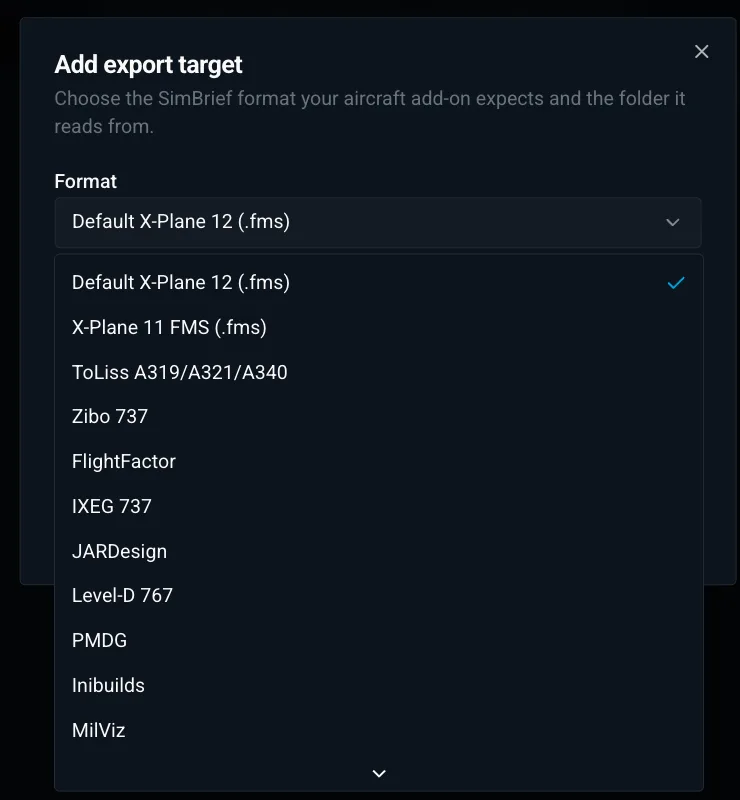
  • Add an export target per aircraft: pick the format and the folder once. Default X-Plane 12 and X-Plane 11 .fms, ToLiss A319/A321/A340, Zibo 737, FlightFactor, IXEG 737, JARDesign, Level-D 767, PMDG, iniBuilds, MilViz, Garmin GTN, VATSIM FPL and the briefing PDF.
  • Press Send to FMS in the briefing. One entry per target, or Send all when you fly several types.
  • Load the plan in the aircraft the way that add-on expects, usually Co Rte or the FMS plans list.
  • The taxi planner suggests a route to your SimBrief departure runway as soon as you pick a gate.
The Add export target dialog listing SimBrief formats for X-Plane aircraft: ToLiss, Zibo 737, FlightFactor, IXEG, JARDesign, Level-D, PMDG, iniBuilds, MilViz.

Edit it, or build your own

A SimBrief plan is a normal plan once it is in X-Dispatch.

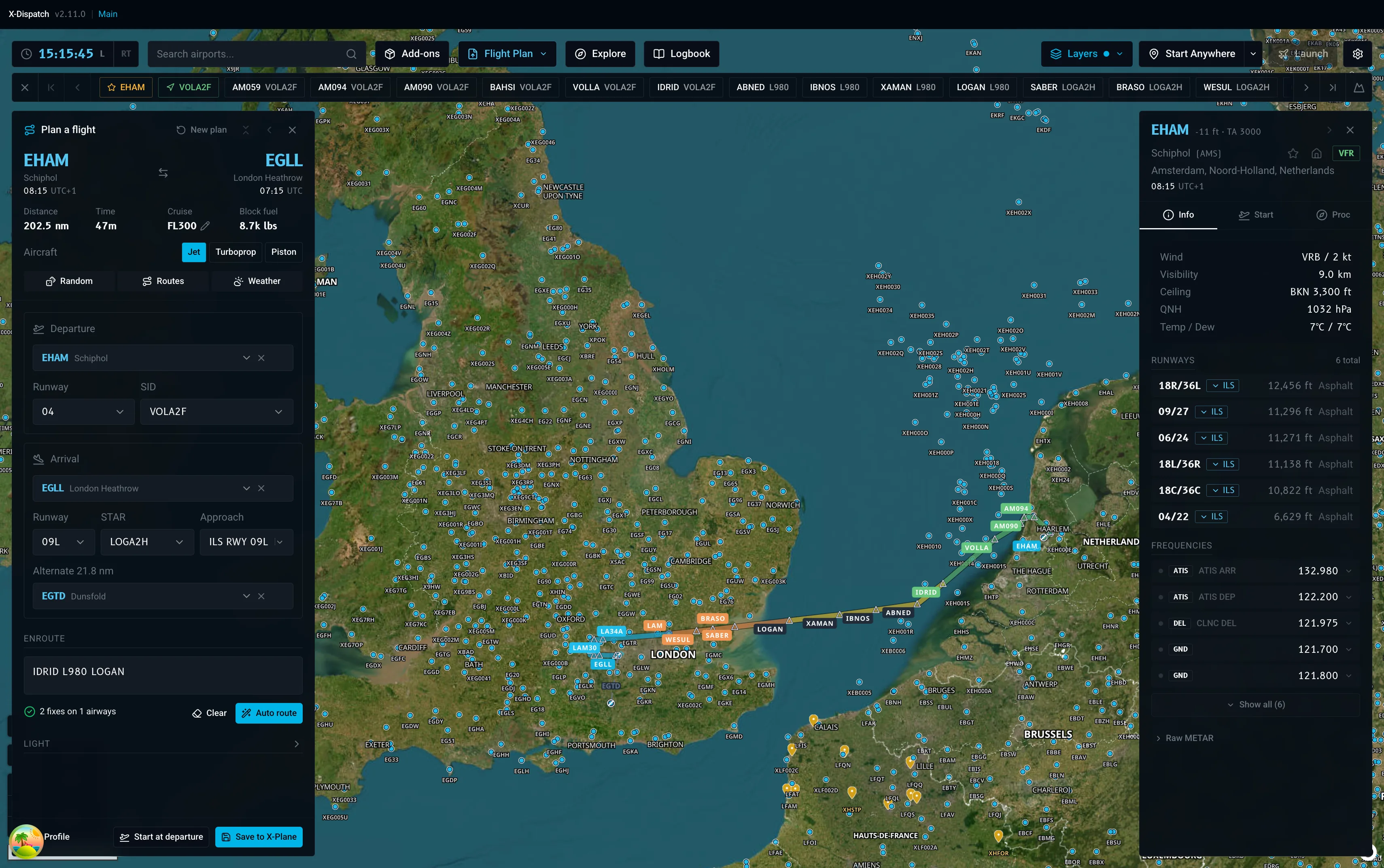
  • Change the runway, SID, STAR or approach in the planner and the map redraws as you type.
  • Check the climb and descent against terrain in the vertical profile.
  • Save the plan to X-Plane as an .fms file, then launch the sim from the same window with the aircraft, fuel, weather and time set.
  • No SimBrief plan today? The built-in planner routes on real airways from your own nav data, Navigraph or default.
X-Dispatch flight planner with a route from Amsterdam to London drawn on the satellite map.

Questions about SimBrief and X-Plane 12

Do I need a paid SimBrief or Navigraph subscription?

No. A free SimBrief account is enough. X-Dispatch fetches the OFP with your SimBrief username or Pilot ID. A Navigraph subscription only matters for current AIRAC data inside SimBrief and X-Plane.

Does it replace the SimBrief Downloader?

For X-Plane 12, yes. X-Dispatch downloads the plan, writes it into the aircraft folders you configure, and also shows the briefing, draws the route on the map and launches the sim. There is no separate downloader to run.

Which aircraft are supported for Send to FMS?

Default X-Plane 12 and 11 .fms, ToLiss, Zibo 737, FlightFactor, IXEG 737, JARDesign, Level-D 767, PMDG, iniBuilds, MilViz, Garmin GTN and VATSIM FPL, plus the briefing PDF. Any aircraft that reads a standard .fms file works with the default target.

Where do I find my SimBrief Pilot ID?

On simbrief.com under Account Settings. Your username works too, it is the Navigraph alias you sign in with. Enter either under Settings, SimBrief in X-Dispatch and press Test.

It says no plan on file. What now?

Generate a flight on simbrief.com first, then press Refresh in X-Dispatch. An Unknown user message means the username or Pilot ID is wrong. Check it under Settings, SimBrief.

Is X-Dispatch free?

Yes. No subscription and no account. It runs on Windows, macOS and Linux and needs X-Plane 12.4 or later.

Your next OFP, straight into the sim.

Free for X-Plane 12 on Windows, macOS and Linux.

Read the SimBrief manual